
Transaction Feature – Receipt Management
Transaction Feature – Receipt Management
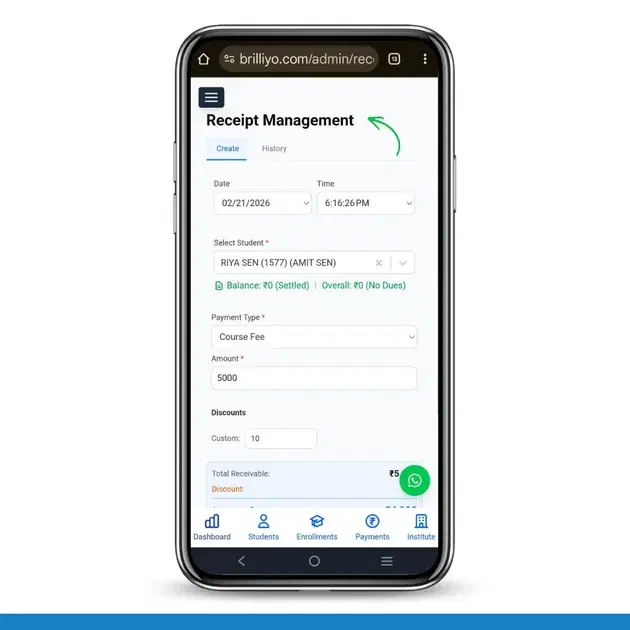
The Receipts feature in Brilliyo helps institutions record and manage student fee payments easily. It ensures every payment is properly documented and stored securely.
Receipts have two main sections:
- Create
- History
1. Create Receipt (How to Issue a New Receipt)
This section is used when a student pays fees and you need to generate a receipt.
Steps to Create a Receipt:
- Go to Transaction → Receipts.
- Click on the Create tab.
- Select the Date (auto-filled, can be changed if needed).
- Select the Time (auto-filled).
- Choose the Student Name from the dropdown.
- Select the Type of Payment (e.g., Tuition Fee, Admission Fee, etc.).
- Enter the Receivable Amount.
- If needed, apply a Discount (custom discount option available).
- The system will automatically show the Discounted Receivable Amount.
- Select the Mode of Payment (Cash/Bank).
- Choose the Payment Account (which account will receive the money).
- Add Remarks (optional).
- Apply GST if required.
- Click Issue Receipt.
✅ The receipt is generated instantly and recorded in the system.
2. Receipt History (How to View Previous Receipts)
This section allows you to view all previously issued receipts.
How to Use Receipt History:
- Click on the History tab.
- Use filters to search:
- Search by Student Name
- Search by Address
- Select Start Date
- Select End Date
- The system will display all matching receipt records.
- You can review past payments and track fee details easily.
If no records match, it will show “No fee details available.”
In Short
- Create → Used to generate new student fee receipts.
- History → Used to track and review past payment records.
This feature ensures complete transparency and proper fee tracking for your institution.
Tags:
Related Documentation
Transaction Feature – Payment Management
The Payment Management feature in Brilliyo helps institutions record and manage outgoing payments such as general expenses and employee salaries. It ensures every payment is properly recorded with ledger tracking and accounting accuracy.
Transaction Feature – Discount Management
The Discount Management feature in Brilliyo allows institutions to create and manage fee discounts easily. It helps apply percentage-based discounts on student payments and control their validity through expiry dates.