
Student Management
Student Enrollments – Step-by-Step Guide
1 min read
0 views
Esha
May 6, 2026
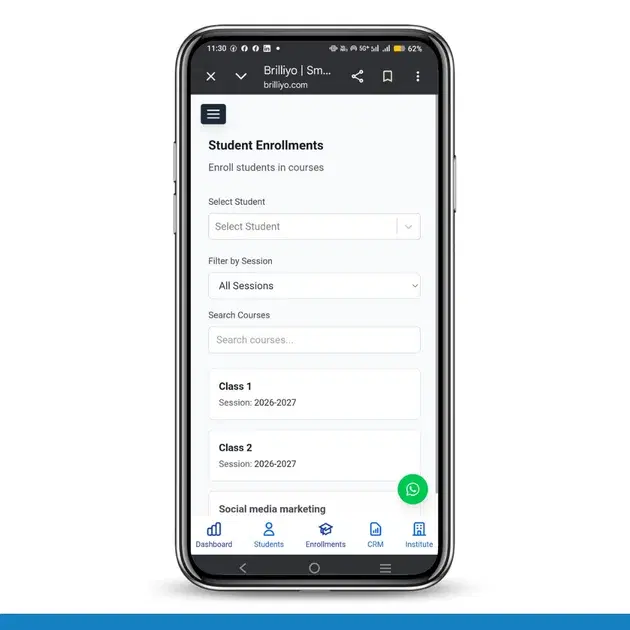
Student Enrollments – Step-by-Step Guide
The Student Enrollments feature in Brilliyo allows you to assign students to specific courses, sessions, sections, and disciplines.
Steps to Enroll a Student
1. Go to Enrollments Section
- Navigate to the dashboard
- Click on Enrollments
2. Select Student
- Click on Select Student
- Choose the student from the list
- Example: Aditi (2263) – Father: Prabir
3. Select Session
- Select the academic session
- Example: 2026–2027
4. Select Course / Class
- Use Search Courses to find the class
- Select the course/class (e.g., Class 2)
5. Select Section
- Click on Select Section
- Choose the appropriate section
6. Select Discipline
- Click on Select Discipline
- Choose the relevant discipline
7. Enroll Student
- Click on Enroll Student
Result
- The student will be successfully enrolled
- Check under Enrolled Students – Class 2
Note
- Ensure the student is added before enrollment
- Section and discipline depend on the selected course
Tags:
BrilliyoStudent EnrollmentSchool Management SystemEdTech
Share:
Related Documentation
Students Feature – Add Student
The Add Student feature in Brilliyo allows institutions to register new students by entering their personal, academic, and contact details. This ensures proper record management and communication.
2 min read
Attendance Feature – Take Attendance
The Take Attendance feature in Brilliyo allows institutes to record attendance using Face Scan (AI-based) or Manual Entry. It supports both Students and Employees and records In-Time attendance efficiently.
2 min read
Attendance Feature – Add Face
Academics Feature – Add Face (Attendance)
1 min read