
Accounting Feature – Reports
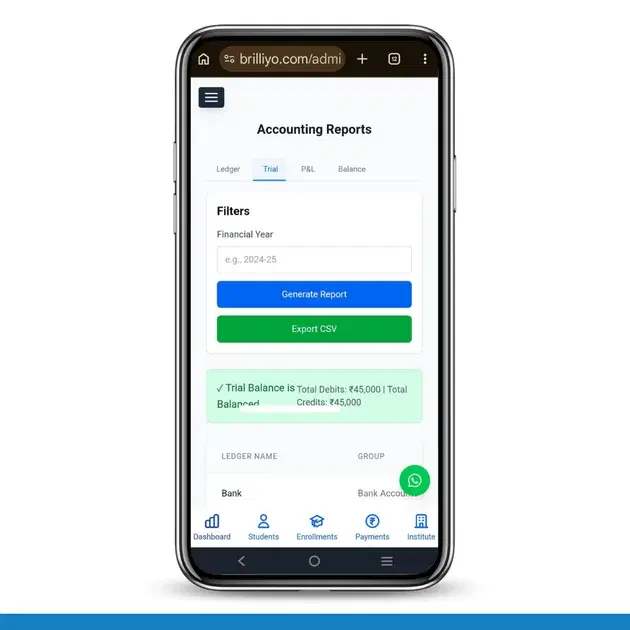
Accounting Feature – Financial Reports
The Financial Reports feature in Brilliyo Accounting helps institutions analyze and track their complete financial performance. It allows administrators to generate important accounting reports such as Ledger Books, Trial Balance, Profit & Loss Account, and Balance Sheet.
These reports help monitor income, expenses, assets, liabilities, and overall financial health of the institution.
This feature contains four main report options:
- Ledger Books
- Trial Balance
- P&L Account (Profit & Loss)
- Balance Sheet
1. Ledger Books (View Ledger Transactions)
The Ledger Books report shows all transactions recorded under each ledger account.
This report helps track:
- Student payments
- Employee payments
- Expense records
- Bank and cash transactions
How to Use Ledger Books
- Go to Accounting → Financial Reports.
- Click on Ledger Books.
- Select the Ledger Account you want to view.
- Choose the Financial Year or Date Range.
- Click Generate Report.
The system will display:
- Ledger Name
- Debit Transactions
- Credit Transactions
- Transaction Date
- Running Balance
You can also export the report as CSV for accounting records.
2. Trial Balance (Check Accounting Accuracy)
The Trial Balance report shows the summary of all ledger balances in the accounting system. It helps verify whether total debit entries match total credit entries.
Information Displayed in Trial Balance
- Ledger Name
- Ledger Group
- Debit Total
- Credit Total
- Net Balance
- Balance Type (Debit or Credit)
The report also displays:
- Total Debits
- Total Credits
If both totals match, the system shows "Trial Balance is Balanced".
How to Generate Trial Balance
- Go to Accounting → Reports.
- Click on Trial Balance.
- Enter the Financial Year.
- Click Generate Report.
You can also click Export CSV to download the report.
3. P&L Account (Profit and Loss Report)
The Profit & Loss (P&L) report shows the institution’s total income and expenses during a selected financial period.
Information Displayed
Income Section
- Student Fee Income
- Course Fees
- Other Revenue
Expense Section
- Salaries
- General Expenses
- Operational Costs
Calculation:
Total Income – Total Expenses = Net Profit or Loss
How to Generate P&L Report
- Go to Accounting → Financial Reports.
- Click P&L Account.
- Select the Financial Year.
- Click Generate Report.
4. Balance Sheet (Financial Position Report)
The Balance Sheet report shows the financial position of the institution at a specific time.
It displays:
- Assets
- Liabilities
- Equity / Capital
Assets Section
- Bank Balance
- Cash Balance
- Receivables
Liabilities Section
- Vendor Payables
- Loans
- Outstanding Expenses
The balance sheet follows the accounting equation:
Assets = Liabilities + Equity
How to Generate Balance Sheet
- Go to Accounting → Financial Reports.
- Click Balance Sheet.
- Select the Financial Year.
- Click Generate Report.
Exporting Reports
Brilliyo allows administrators to export reports for accounting analysis.
Available export option:
- Export CSV
This helps accountants:
- Save financial records
- Share reports with auditors
- Analyze financial data externally
In Short
- Ledger Books → View ledger-wise transaction history.
- Trial Balance → Verify debit and credit balance accuracy.
- P&L Account → Analyze profit or loss for the financial year.
- Balance Sheet → View overall financial position of the institution.
The Financial Reports feature in Brilliyo helps institutions maintain transparent, accurate, and professional accounting records.
Tags:
Related Documentation
Accounting Feature – Journal Entries
The Journal Entries feature in Brilliyo helps institutions record, manage, and track all financial transactions systematically. It ensures that every transaction is posted to the correct ledgers following double-entry accounting rules, keeping your books accurate and balanced.
Accounting Feature – Ledger Management
The Ledger Management feature in Brilliyo helps institutions organize and maintain their complete chart of accounts for accurate financial tracking. It ensures all financial data like assets, liabilities, student receivables, and employee accounts are stored securely and accessible when needed