
CRM – Campaigns
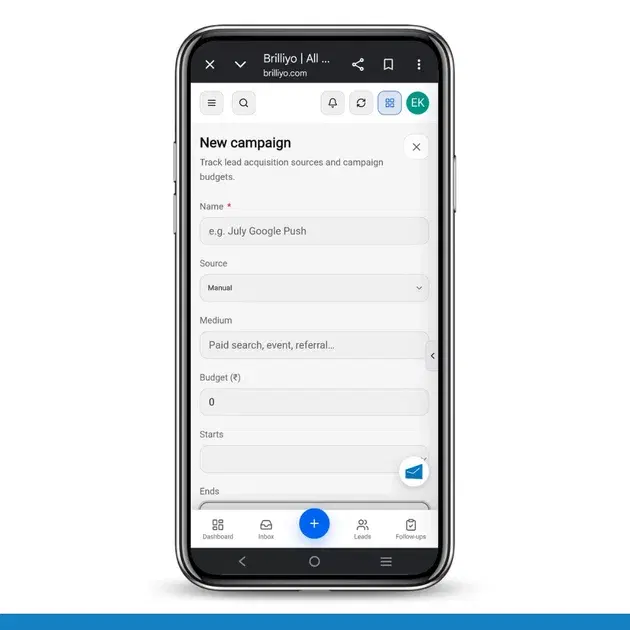
The Campaigns feature in Brilliyo CRM helps you create and manage marketing campaigns. You can record the campaign source, medium, budget, campaign duration, target course, status, and description in one place.
How to Create a Campaign
Step 1: Open Brilliyo CRM
Log in to your Brilliyo account.
From the main menu, open Brilliyo CRM.
Step 2: Select Campaigns
In the CRM menu, go to the Marketing section.
Click on Campaigns.
The Campaigns page will open, where you can view your existing campaigns.
Step 3: Click “+ New”
To create a new campaign, click the + New button.
The New Campaign form will open.
Step 4: Enter the Campaign Name
In the Name field, enter a suitable name for your campaign.
For example:
July Campaign
Use a clear name that helps you identify the campaign easily.
Step 5: Select the Source
In the Source field, select the source of your campaign.
The available source will depend on your campaign setup. Select the option that best represents where the campaign is coming from.
Step 6: Enter the Medium
In the Medium field, enter the marketing medium used for the campaign.
For example, you can enter:
Paid Search
Event
Referral
Social Media
This helps you identify the medium through which the campaign is being run.
Step 7: Enter the Budget
In the Budget (₹) field, enter the planned budget for the campaign.
For example:
₹1,000
Enter the budget according to your campaign plan.
Step 8: Select the Start Date
In the Starts field, select the date on which the campaign will start.
Step 9: Select the End Date
In the Ends field, select the date on which the campaign will end.
Together, the Starts and Ends fields define the duration of your campaign.
Step 10: Add a Target Course
In the Target Course field, select or enter the course or program that the campaign is promoting.
This field is optional.
For example, if the campaign is promoting a particular course, select that course here.
Step 11: Select the Campaign Status
In the Status field, select the current status of your campaign.
Brilliyo provides four status options:
Draft – Use this when the campaign is still being prepared.
Active – Use this when the campaign is currently running.
Paused – Use this when an active campaign has been temporarily stopped.
Completed – Use this when the campaign has finished.
Select the status that matches the current stage of your campaign.
Step 12: Add a Description
In the Description field, add additional information about the campaign.
You can describe the campaign objective, promotion details, target audience, or any other information that may be useful for your team.
Step 13: Save the Campaign
After entering all the campaign details, click Save campaign.
Your campaign will be created and added to the Campaigns list.
How to View Campaign Details
After creating a campaign, you can view it from the Campaigns page.
The campaign list displays important details such as:
Campaign – Name of the campaign
Source – Campaign source
Budget – Planned campaign budget
Status – Current campaign status
This makes it easier to keep track of your campaigns.
Example Workflow
To create a campaign, follow this path:
Brilliyo CRM → Marketing → Campaigns → + New → Enter Campaign Details → Select Status → Save Campaign
Summary
The Campaigns feature helps you organize your marketing campaigns and maintain important campaign information in one place. You can add the campaign source, medium, budget, dates, target course, status, and description, then save the campaign for easy tracking.