
CRM – Lead Capture Form
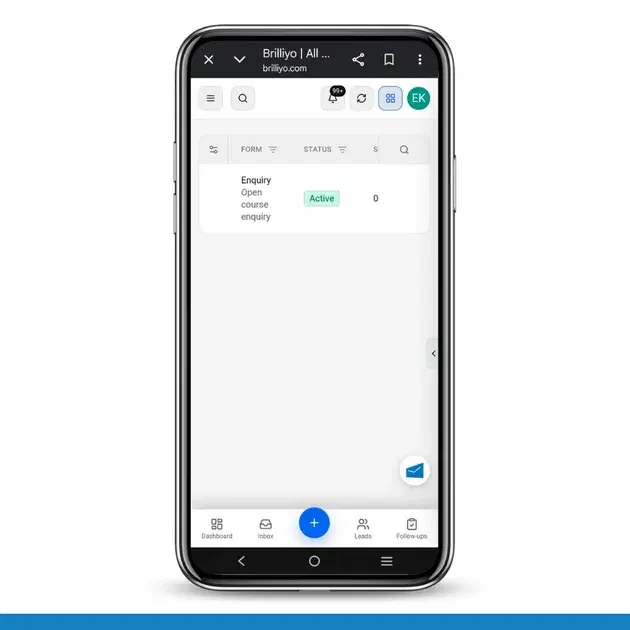
The Lead Capture Form feature in Brilliyo CRM allows institutes to create a public enquiry form for capturing student leads. The form can be shared with students through a QR code, allowing them to submit their details directly to the CRM.
How to Create a Lead Capture Form
Step 1: Open CRM
Log in to your Brilliyo workspace and go to CRM.
Step 2: Open Lead Capture Forms
Open the Lead Capture Form section.
Step 3: Click “New”
Click New to create a new form.
Select New QR inquiry form.
Step 4: Enter Form Details
Fill in the basic form information:
Form title * – Enter the title of the enquiry form.
Branch ID – Enter the relevant branch ID.
Description – Add a short description about the enquiry form.
Fixed course – Select a specific course if the form is intended for one particular course.
Expires – Set an expiry date for the public form.
Leave Expires empty if you want to keep the public form open indefinitely.
Step 5: Review Required Student Information
Every public form automatically includes the following required fields:
Full name * – Required. Students cannot skip this field.
Mobile number * – Required. The country code is included.
Contact consent * – Required checkbox that allows the institute to follow up with the student.
These required fields cannot be removed from the public form.
Step 6: Select Additional Fields
The form also provides additional fields that you can include or remove according to your requirements.
Available fields include:
Email
Alternate mobile
Location
Date of birth
Gender
Preferred language
Qualification
Passing year
College
Education branch
CGPA / percentage
Course
Program
Campus / branch
Preferred batch
Mode
Budget
Preferred start date
How did you hear about us?
Campaign
Medium
How can we help?
Some fields are selected by default, such as Email, Course, and How can we help?
You can uncheck any optional field that you do not want to display on the public form.
Step 7: Add Custom Questions
If you need to collect information that is not available in the standard field list, you can create your own question.
Click Add custom question and add the institute-specific question.
The answers to custom questions are saved in the lead notes and raw enquiry data.
Step 8: Preview the Form
Click Preview to check how the public enquiry form will appear to students.
Review the fields and form details before creating it.
Step 9: Create the QR Form
After reviewing the form, click Create QR form.
The QR enquiry form will be created successfully.
Lead Capture Form List
After creating the form, it will appear in the Lead Capture Form list.
The list displays information such as:
Form | Status | Submissions | Created | QR Code |
|---|---|---|---|---|
Enquiry | Open course enquiry | Active / 0 | 8/25/2026, 6:18 PM | QR code for Enquiry |
You can use the generated QR code to allow students to access and submit the public enquiry form.
Quick Navigation
Brilliyo CRM → Lead Capture Forms → New → New QR Inquiry Form → Enter Form Details → Select Fields → Add Custom Questions → Preview → Create QR Form
Summary
With Brilliyo CRM Lead Capture Forms, institutes can create QR-based public enquiry forms, collect student information, add custom questions, set an expiry date, and capture enquiries directly into the CRM.
Tags:
Related Documentation
CRM – Applications
The Applications feature in Brilliyo CRM helps you review and manage applicant applications before converting an approved applicant into a student. You can track the application progress using different statuses, from the initial draft to approval or rejection.
CRM – Campaigns
The Campaigns feature in Brilliyo CRM helps you create and manage marketing campaigns. You can record the campaign source, medium, budget, campaign duration, target course, status, and description in one place.