
Academics – Certificates Feature
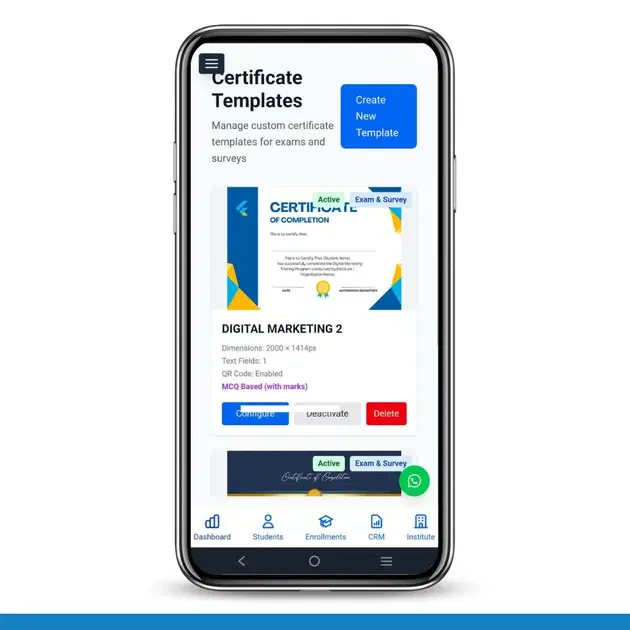
Brilliyo Academics – Certificates Feature (Step-by-Step Guide)
The Certificates Feature in Brilliyo Academics allows institutes to create, design, and send certificates for exams and surveys.
1. Go to Certificates Section
- Go to Academics → Exam/Survey → Certificates
- Click on Create New Template
2. Create Certificate Template
- Template Type: Select Exam / Survey / Both
- MCQ Based Certificate (Optional): Enable to show marks and percentage
- Upload Certificate Image: PNG, JPG, WEBP (Recommended: 1920×1080px)
- Click Create & Configure Fields
3. Configure Certificate Fields
Tip: Drag markers or click to place fields on the template preview.
Text Fields
- Click + Add Field
- Select field type (Student Name, Course Name, Date, etc.)
- Set X and Y position
- Set Font Size, Font Style, Weight, Color
- Choose Alignment (Left / Center / Right)
Indicators:
Blue border = Selected
Red border = Unselected
QR Code (For Exams)
- Enable QR Code
- Set X Position and Y Position
- Set Size
Note: Green marker shows QR code placement
4. Preview & Adjust
- Check live preview
- Adjust spacing and alignment
5. Save Configuration
- Click Save Configuration
- Your certificate template is ready
6. Usage
- Use template in Assessment Links
- Certificates can be sent automatically or manually
In Short
Create Template → Upload Design → Add Fields → Configure → Save → Use in Exams
Tags:
Related Documentation
CRM – Inbox
The Inbox feature in Brilliyo CRM allows you to manage and respond to conversations with your leads from one place. You can search for leads, open their conversations, and continue communication directly from the CRM.
Report Card Module – User Guide
Before you begin, navigate to Courses → Report Card. This module allows you to create examinations, enter student marks, generate report cards, and prepare exam schedules.
Brilliyo CRM Leads Feature
Managing admissions and inquiries becomes much easier with the Brilliyo CRM Leads feature. It helps schools, colleges, coaching centers, and educational institutes track every lead from the first inquiry to final enrollment.