
Report Card Module – User Guide
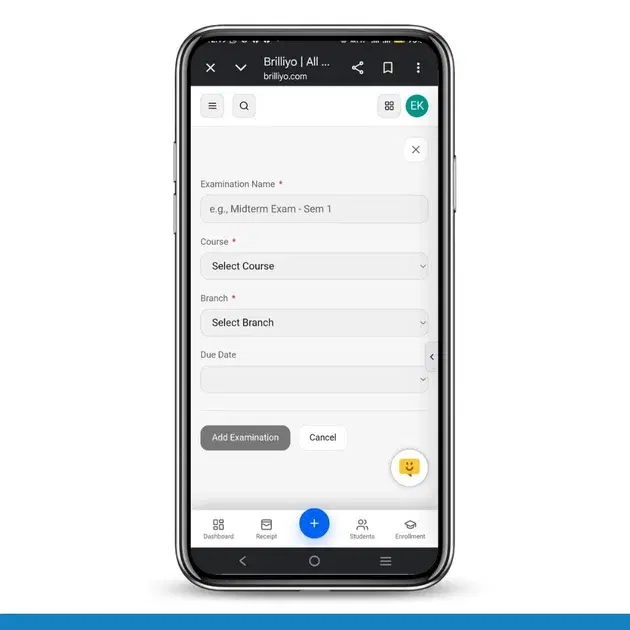
Step 1: Create a New Examination
Go to Courses from the main menu.
Select Report Card.
Click New.
Fill in the required details:
Field | Description |
|---|---|
Examination Name | Enter the exam name (e.g., Midterm Exam - Sem 1). |
Course | Select the course/class. |
Branch | Choose the branch. |
Due Date | Select the examination due date. |
Click Add Examination to create the examination.
Click Cancel if you do not wish to save.
Step 2: View Examination List
After creating the examination, it will appear in the examination list.
The list displays the following information:
Examination Name
Course
Due Date
Sections
Subjects & Maximum Marks
Status
Created Date & Time
Actions
Example:
Examination Name | Course | Due Date | Sections | Subjects & Marks | Status |
|---|---|---|---|---|---|
Test | Class 1 | 22-07-2026 | All | Hindi (100), English (100) | Published |
Available actions:
Results
Schedule
Step 3: Enter Student Results
In the examination list, click Results.
The result entry page will open.
The page displays:
Examination Name
Course
Due Date
Status
Section
Below this, the student list appears.
Example:
Student Name | Father's Name | Hindi | English | Total Marks |
|---|---|---|---|---|
Aditi | Rakesh | 100 | 100 | 200 |
For each student:
Enter marks for every subject.
Add remarks if required.
Total marks will be calculated automatically (if enabled).
Click Save to store the marks.
Additional options:
Print Marksheet – Generate and print the student's report card.
Share on WhatsApp – Send the report card directly to the parent's WhatsApp number.
Step 4: Generate Exam Schedule (Admit Card Preparation)
To create an examination schedule:
Return to the examination list.
Click Schedule.
Fill in the required information.
Schedule Details
Field | Description |
|---|---|
Venues | Enter examination venues separated by commas (e.g., Main Hall, Hall B, Hall C). |
Start Date | Select the examination start date. |
End Date | Select the examination end date. |
Holidays to Skip | Enter holidays in YYYY-MM-DD format. The scheduler will automatically skip these dates. |
Version | Select an existing schedule version or create a new one. |
After entering all details:
Click Generate Schedule.
Review the generated timetable.
Click Publish Version to make it official.
Use Dry Run Send to preview before sending.
Click Send WhatsApp PDF to share the exam schedule with students and parents.
Step 5: Review the Generated Schedule
The generated schedule contains the following information:
Column | Description |
|---|---|
Date | Examination date |
Start | Exam start time |
End | Exam end time |
Section | Class section |
Venue | Examination hall |
Subject | Subject name |
Action | Available actions for editing or managing the schedule |
Complete Workflow
Go to Courses → Report Card.
Click New.
Create a new examination.
The examination appears in the examination list.
Click Results to enter student marks.
Save marks and generate report cards.
Print marksheets or share them via WhatsApp.
Click Schedule to generate the exam timetable.
Publish the schedule and send the PDF to students and parents via WhatsApp.
This workflow covers the complete process from creating an examination to publishing results and generating the examination schedule/admit card.
Tags:
Related Documentation
CRM – Inbox
The Inbox feature in Brilliyo CRM allows you to manage and respond to conversations with your leads from one place. You can search for leads, open their conversations, and continue communication directly from the CRM.
Brilliyo CRM Leads Feature
Managing admissions and inquiries becomes much easier with the Brilliyo CRM Leads feature. It helps schools, colleges, coaching centers, and educational institutes track every lead from the first inquiry to final enrollment.
Live Stream Feature
This document explains how to use the Live Stream feature on Brilliyo to start, run, and manage live lectures for your students.