
Live Stream Feature
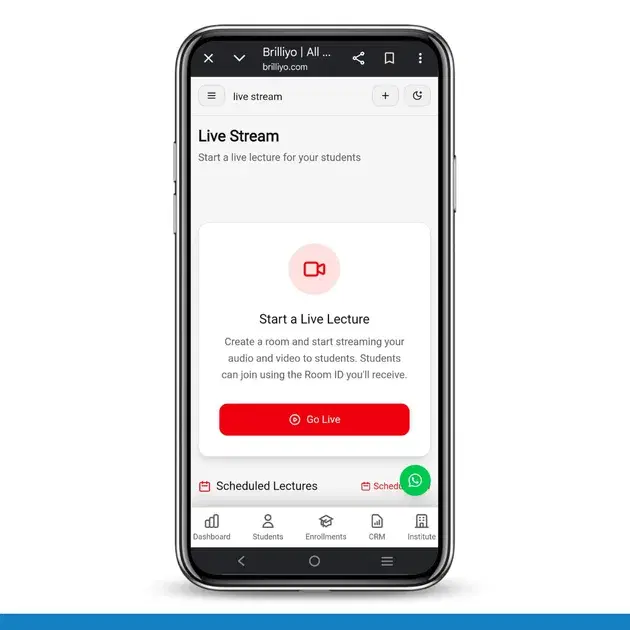
This document explains how to use the Live Stream feature on Brilliyo to start, run, and manage live lectures for your students.
1. Overview
The Live Stream feature allows instructors to host live audio and video lectures for their students directly from Brilliyo. When you start a live lecture, the system creates a unique streaming room and generates a Room ID that students use to join the session in real time.
This feature is designed for:
- Hosting live lectures, classes, or sessions with students
- Streaming audio and video in real time from the instructor's device
- Allowing students to join a session quickly using a Room ID
2. Accessing the Live Stream Feature
- Log in to your Brilliyo admin account.
- From the admin dashboard, navigate to the Live Stream section.
- You will see the Live Stream page with the option to start a new lecture.
3. Starting a Live Lecture
3.1 Step-by-Step Instructions
- Go to the Live Stream page in your admin dashboard.
- Click the “Go Live” button under “Start a Live Lecture.”
- Brilliyo will create a new streaming room for your session.
- A unique Room ID will be generated and displayed on the screen.
- Allow Brilliyo access to your device's camera and microphone if prompted.
- Once the room is ready, your audio and video stream will begin broadcasting.
3.2 Sharing the Room ID with Students
After the room is created, share the Room ID with your students so they can join the live lecture. Depending on your setup, this may be done by:
- Copying and sharing the Room ID with students directly (for example, via chat, email, or announcement)
- Sharing the Room ID through the relevant course or class page, if available
4. How Students Join the Live Lecture
- The student opens Brilliyo on their device.
- They enter the Room ID provided by the instructor.
- Once the Room ID is verified, the student is connected to the live audio and video stream.
Students only need the Room ID to join — no additional setup is required on their end.
5. During the Live Lecture
While the live lecture is in progress, keep the following in mind:
- Ensure a stable internet connection for uninterrupted streaming
- Keep your camera and microphone enabled so students can see and hear you clearly
- Avoid closing the browser tab or app, as this may end the live session
6. Ending a Live Lecture
To end the live lecture, close or exit the live streaming room from the admin dashboard. Once ended, students will no longer be able to join using the same Room ID, and the live session will be considered complete.
7. Troubleshooting & Tips
| Issue | Suggested Fix |
|---|---|
| Camera or microphone not working | Check that Brilliyo has permission to access your camera/microphone in your browser or device settings. |
| Students cannot join with the Room ID | Double-check that the Room ID was shared correctly and that the live session is still active. |
| Stream is lagging or freezing | Check your internet connection speed and close other apps or browser tabs using bandwidth. |
| Live session ended unexpectedly | Go back to the Live Stream page and start a new lecture; share the new Room ID with students. |
Tags:
Related Documentation
CRM – Inbox
The Inbox feature in Brilliyo CRM allows you to manage and respond to conversations with your leads from one place. You can search for leads, open their conversations, and continue communication directly from the CRM.
Report Card Module – User Guide
Before you begin, navigate to Courses → Report Card. This module allows you to create examinations, enter student marks, generate report cards, and prepare exam schedules.
Brilliyo CRM Leads Feature
Managing admissions and inquiries becomes much easier with the Brilliyo CRM Leads feature. It helps schools, colleges, coaching centers, and educational institutes track every lead from the first inquiry to final enrollment.