
Brilliyo Institute – Notifications
1. Overview
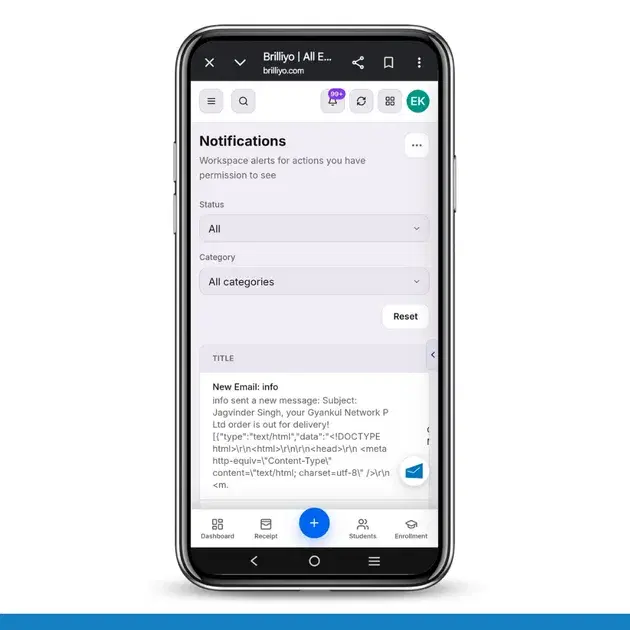
The Notifications feature helps institute administrators and staff stay updated about important activities happening inside their Brilliyo workspace.
It displays alerts related to student management, financial transactions, CRM and lead management, emails, and other activities that users have permission to view.
In simple words, Notifications work like an activity alert center, where users can check important updates without manually visiting every section of Brilliyo.
2. Why Should Institutes Use Notifications?
The Notifications feature helps institutes:
Stay Updated: Receive updates about important activities in the institute.
Track Payments: Get alerts when receipts are generated and payments are recorded.
Monitor Students: Stay informed when new students are added.
Track Leads: Know when lead stages change in the CRM.
Monitor Tasks: Check updates when CRM tasks are completed or modified.
Review Emails: View email-related notifications, including delivery-related messages.
Save Time: Access important updates from one centralized location.
3. How to Open Notifications
Follow these steps:
Log in to your Brilliyo Institute account.
Open the Notifications section.
The Notifications page will display the available alerts.
Review the notification list to understand recent institute activities.
4. Understand the Notifications Dashboard
The dashboard contains different filters and notification details.
A. Status Filter
The Status filter helps you view notifications according to their current status.
All: Displays all available notifications.
Unread: Displays notifications that have not been read.
Read: Displays notifications that have already been read.
B. Category Filter
The Category filter helps you find notifications from a particular department or activity.
For example:
CRM & Lead Management
Financial Management
Student Management
C. Reset
Click Reset to clear the selected filters and return to the default notification view.
5. Understanding Notification Details
The notification table contains the following columns:
Column | Description |
|---|---|
Title | Displays the notification heading or activity name |
Category | Shows the department or module related to the activity |
When | Displays the date and time when the notification was generated |
Status | Shows whether the notification is Read or Unread |
Actions | Displays available actions for managing the notification |
6. Types of Notifications
Based on the provided dashboard, Brilliyo displays several types of notifications.
A. CRM & Lead Management
These notifications help staff monitor CRM activities.
Examples:
New Email: Displays information about incoming email-related activity.
Lead Stage Changed: Shows when a lead moves from one stage to another.
CRM Task Updated: Shows when a task is updated or completed.
Example:
A lead moves from NEW to CONTACTED by a counsellor. The system generates a notification about the change.
B. Financial Management
These notifications help institutes track payment-related activities.
Examples:
Receipt generated.
Student payment recorded.
Course or class payment received.
Example:
A student named Gaura pays ₹100 for a course or class. Brilliyo generates a notification showing the receipt number, payment amount, and related information.
C. Student Management
These notifications help staff stay updated about student-related activities.
Example:
Student Added: Gaura
The notification informs staff that a new student has been added and shows who added the student.
7. How to Check a Notification
Follow these steps:
Open the Notifications section.
Select the required notification.
Review its title and description.
Check its category and generated date.
Review its status to understand whether it is read or unread.
If an action is available in the Actions column, use it to manage the notification.
8. Read and Unread Notifications
Notifications have two different statuses:
Unread: The notification has not yet been read.
Read: The notification has already been viewed or marked as read.
Users can use the Status filter to find notifications that still need attention.
9. Navigate Between Notification Pages
The Notifications section supports pagination.
For example, the dashboard may display:
Page 1 of 38
Previous
Next
Use Next to view older or additional notification records and Previous to return to the earlier page.
10. Benefits of the Notifications Feature
Centralized activity updates.
Better payment and receipt tracking.
Faster monitoring of student activities.
Easy tracking of CRM lead changes.
Visibility into task updates and email activity.
Quick access to unread notifications.
Improved communication and administrative awareness.
11. Best Practices
Check notifications regularly.
Review unread alerts.
Monitor payment and receipt notifications.
Follow up on important CRM updates.
Check email-related notifications when required.
Use category filters to find specific activities.
In short: Brilliyo Notifications help institutes stay informed about important workspace activities, including payments, student updates, CRM changes, tasks, and email-related events—all from one centralized dashboard.
Note: This guide is based on the notification categories, filters, columns, and examples you shared. Available notifications depend on user permissions and activities recorded in the institute workspace.
Tags:
Related Documentation
Brilliyo System Admin
The Access Control feature allows the System Admin to manage user accounts, assign product access, control permissions, and review access requests.
Brilliyo Institute – Payment Settings
The Payment Settings feature allows institutes to configure how they receive payments from students who purchase their courses or classes. Institutes can link their bank accounts to receive payments directly or use the manual settlement mode, where Brilliyo collects payments and settles them manually. This feature helps institutes manage course payment collection, track earnings, and monitor payouts.
Brilliyo Institute – Institute Management
The Institute feature allows users to create and manage their educational institutes on Brilliyo. Users can register an institute, select the required Brilliyo products, update institute details, manage branches, add metadata, and delete an institute when required. This feature helps institutes manage their institutional information and access different Brilliyo services from one place.