
Student Enrollments
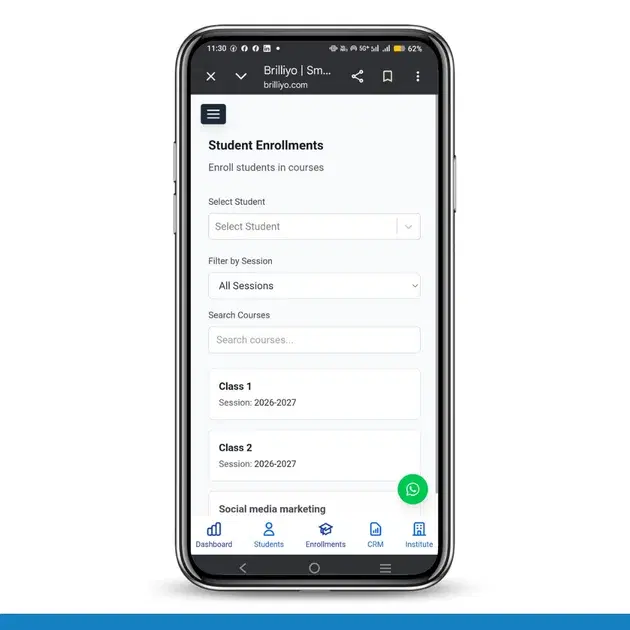
Student Enrollments – Step-by-Step Guide
The Student Enrollments feature in Brilliyo allows you to assign students to specific courses, sessions, sections, and disciplines.
Steps to Enroll a Student
1. Go to Enrollments Section
- Navigate to the dashboard
- Click on Enrollments
2. Select Student
- Click on Select Student
- Choose the student from the list
- Example: Aditi (2263) – Father: Prabir
3. Select Session
- Select the academic session
- Example: 2026–2027
4. Select Course / Class
- Use Search Courses to find the class
- Select the course/class (e.g., Class 2)
5. Select Section
- Click on Select Section
- Choose the appropriate section
6. Select Discipline
- Click on Select Discipline
- Choose the relevant discipline
7. Enroll Student
- Click on Enroll Student
Result
- The student will be successfully enrolled
- Check under Enrolled Students – Class 2
Note
- Ensure the student is added before enrollment
- Section and discipline depend on the selected course
Tags:
Related Documentation
Brilliyo Placement Engine – Add Students
The Student Intelligence feature in Brilliyo Placement Engine helps institutes manage their student directory, student profiles, and resumes from one workspace. It allows placement teams to monitor resume uploads, check profile readiness, and prepare eligible students for job matching.
CRM – Integrations
The Integrations feature in Brilliyo CRM allows you to connect your website, WhatsApp, email, and social pages with your CRM lead pipeline. This helps bring leads from external channels into your CRM for centralized lead management.
Student Reports – Step-by-Step Guide
The Student Reports feature in Brilliyo helps institutes view detailed student fee payment history, payment modes, and total paid amounts. Administrators can also download reports in Excel format for record keeping and analysis.