
Student Reports – Step-by-Step Guide
Student Reports – Step-by-Step Guide
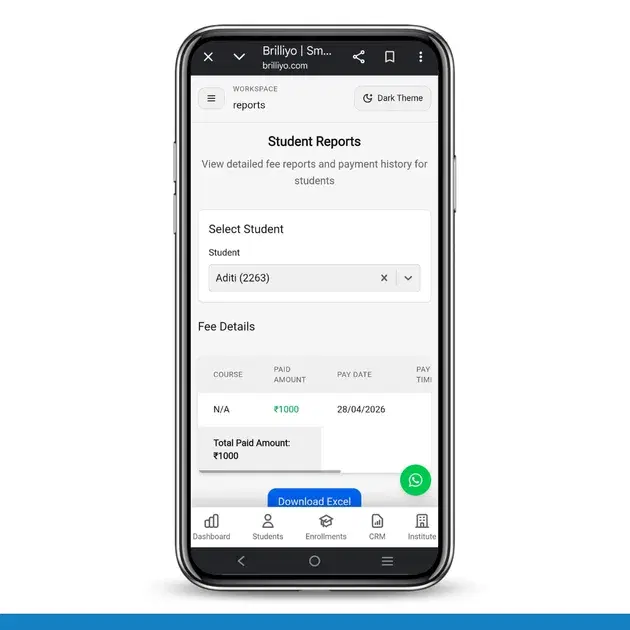
The Student Reports feature in Brilliyo helps institutes view detailed student fee payment history, payment modes, and total paid amounts. Administrators can also download reports in Excel format for record keeping and analysis.
How to Use Student Reports Feature
1. Open Reports Section
- Go to the dashboard
- Click on Reports
- Open Student Reports
2. Select Student
- Click on the Select Student dropdown
- Choose the student whose payment history you want to view
3. View Fee Details
After selecting the student, the system will display fee payment details automatically.
You can view:
- Course Name
- Paid Amount
- Payment Date
- Payment Time
- Payment Type
- Payment Mode
4. Check Total Paid Amount
- At the bottom of the report, you can see the Total Paid Amount
- This helps track the student’s complete payment history easily
5. Download Report
- Click on Download Excel
- The complete student payment report will be downloaded in Excel format
Benefits of Student Reports Feature
- Easy fee payment tracking
- Quick access to payment history
- Better financial record management
- Export reports anytime in Excel format
- Helps institutes maintain accurate student payment data
Tags:
Related Documentation
CRM – Integrations
The Integrations feature in Brilliyo CRM allows you to connect your website, WhatsApp, email, and social pages with your CRM lead pipeline. This helps bring leads from external channels into your CRM for centralized lead management.
Dropped Out feature
The Dropped Out feature in Brilliyo helps institutes manage students who are no longer continuing their studies. This feature also allows administrators to create manual journal entries for financial adjustments related to the studen
Fee Defaulters – Step-by-Step Guide
The Fee Defaulters feature in Brilliyo helps institutes track students who have pending or unpaid fees. It allows you to monitor outstanding dues, filter records, and quickly collect fees from students.